Input field caps context
An exploration into rethinking standard input fields and pushing the boundaries of micro-interactions.
Jump to prototype
What sparked my curiosity?
Something I saw on the internet
I came across a tweet by one of my favorite designers, Rauno Freiberg, showcasing a brilliant interaction. He used the text caret to provide visual feedback when the ⇧ Shift or Caps Lock keys were pressed. This inspired me to explore how else can we communicate hidden system states using the existing constraints of a text input?
I came across a tweet by one of my favorite designers, Rauno Freiberg, showcasing a brilliant interaction. He used the text caret to provide visual feedback when the
⇧ Shift or Caps Lock keys were pressed. This inspired me to explore how else can we communicate hidden system states using the existing constraints of a text input?
Input fields
The current landscape
Input fields are ubiquitous, yet they rely on the same standard UX patterns. While functional, I wanted to explore alternative ways to surface the same system status information to the user.
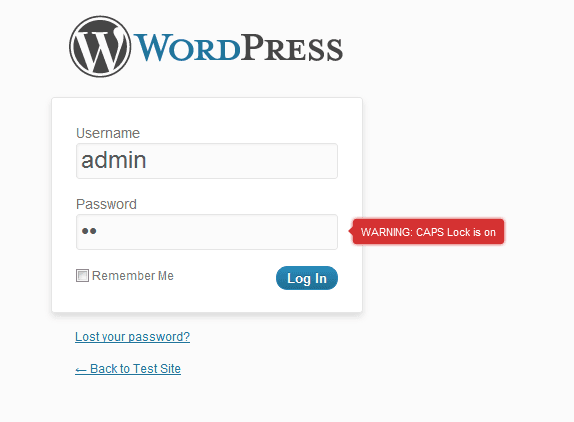
Standard UX patterns typically solve the Caps lock problem by introducing additive UI elements. The most traditional approach relies on an external tooltip hovering outside the field.
A more common and modern example of a Caps lock indicator in an input field would be to simplify what was above by embedding a Caps lock icon directly inside the input field. This is the most common pattern used today.

The outcome
Pushing the concept further
Inspired by Rauno's focus on the text caret, I explored how other elements of the input field could provide visual feedback. I landed on the borders. I asked myself "If the text caret can react, what about the boundaries of the input field?"
In this prototype, border thickness acts as the indicator for the ⇧ Shift and Caps Lock keys. A lighter thickening for the momentary ⇧ Shift state is applied, while a heavier one for the persistent
Caps Lock state.
Instead of adding new UI clutter like icons or tooltips, this approach utilizes the existing structural elements of the component to convey information. Explorations like this force me to step outside standard interaction paradigms and think creatively about visual feedback.
Inspired by Rauno's focus on the text caret, I explored how other elements of the input field could provide visual feedback. I landed on the borders. I asked my self "If the text caret can react, what about the boundaries of the input field?"
In this prototype, border thickness acts as the indicator for the ⇧ Shift and Caps Lock keys. A lighter thickening for the momentary ⇧ Shift state is applied, while a heavier one for the persistent Caps Lock state. Instead of adding new UI clutter like icons or tooltips, this approach utilizes the existing structural elements of the component to convey information.
Explorations like this force me to step outside standard interaction paradigms and think creatively about visual feedback.
Type something in the input field.
See what happens when you hold ⇧ Shift or toggle Caps Lock
Interactive prototype only available on Desktop view
So… why borders?
Borders are one of the most ever-present elements in interface design, yet they are often treated as static. In most products, they only change for obvious states like focus, selection, or error. That made me curious: if borders already carry meaning, could they also communicate more subtle system states? Instead of adding another icon or label, I wanted to explore whether the input itself could express Caps Lock and Shift through a UI element that users already understand.
Inspired by Rauno's focus on the text caret, I explored how other elements of the input field could provide visual feedback. I landed on the borders. I asked my self "If the text caret can react, what about the boundaries of the input field?"
In this prototype, border thickness acts as the indicator for the ⇧ Shift and Caps Lock keys. A lighter thickening for the momentary ⇧ Shift state is applied, while a heavier one for the persistent Caps Lock state. Instead of adding new UI clutter like icons or tooltips, this approach utilizes the existing structural elements of the component to convey information.
Explorations like this force me to step outside standard interaction paradigms and think creatively about visual feedback.
Thoughts and considerations
Beyond the happy path
While exploring this micro-interaction was highly satisfying visually, designing for the real world means looking beyond the ideal scenario. When thinking about how to bridge this concept into actual code, a few immediate technical constraints and edge cases come to mind
Preventing layout shifts
Changing the border thickness of the input fields might cause micro layout shifts as the border becomes thicker, elements beside it might get pushed away. To combat this, the border has to be positioned inside using box-shadow: inset rather than your usual border-width changes.
Works best only for Desktop
This interaction is built around the tactile experience of a desktop keyboard, reacting to both holding
⇧ Shift and toggling Caps Lock. Since mobile keyboards natively update their keys to show these uppercase states, adding this dynamic border to a touchscreen would just add unnecessary visual noise and compete with the OS.
Potential cognitive load during rapid typing
While the feedback is intended to be helpful, testing this in a high-speed, real-world typing flow would be critical to ensure it doesn't degrade the overall typing experience.
While exploring this micro-interaction was highly satisfying visually, designing for the real world means looking beyond the ideal scenario. When thinking about how to bridge this concept into actual code, a few immediate technical constraints and edge cases come to mind
Preventing layout shifts
Changing the border thickness of the input fields might cause micro layout shifts as the border becomes thicker, elements beside it might get pushed away. To combat this, the border has to be positioned inside using
box-shadow: inset rather than your usual
border-width changes.
Works best only for Desktop
This interaction is built around the tactile experience of a desktop keyboard, reacting to both holding
⇧ Shift and toggling Caps Lock. Since mobile keyboards natively update their keys to show these uppercase states, adding this dynamic border to a touchscreen would just add unnecessary visual noise and compete with the OS.
Potential cognitive load during rapid typing
While the feedback is intended to be helpful, testing this in a high-speed, real-world typing flow would be critical to ensure it doesn't degrade the overall typing experience.
While exploring this micro-interaction was highly satisfying visually, designing for the real world means looking beyond the ideal scenario. When thinking about how to bridge this concept into actual code, a few immediate technical constraints and edge cases come to mind
Preventing layout shifts
Changing the border thickness of the input fields might cause micro layout shifts as the border becomes thicker, elements beside it might get pushed away. To combat this, the border has to be positioned inside using box-shadow: inset rather than your usual border-width changes.
Works best only for Desktop
This interaction is built around the tactile experience of a desktop keyboard, reacting to both holding
⇧ Shift and toggling Caps Lock. Since mobile keyboards natively update their keys to show these uppercase states, adding this dynamic border to a touchscreen would just add unnecessary visual noise and compete with the OS.
Potential cognitive load during rapid typing
While the feedback is intended to be helpful, testing this in a high-speed, real-world typing flow would be critical to ensure it doesn't degrade the overall typing experience.